Staff attendance
Record time-in and time-out by face at entrances.
IndustryRetailConstruction
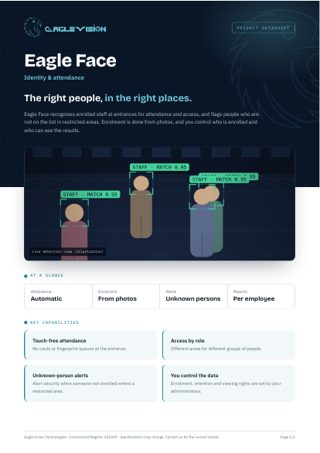
Eagle Face recognizes enrolled staff at entrances for attendance and access, and flags people who are not on the list in restricted areas. Enrolment is done from photos, and you control who is enrolled and who can see the results.
Everything in one PDF to share with your team: key capabilities, all 24 use cases, the technical overview and how to reach us. Downloads in the language you are reading.
Record time-in and time-out by face at entrances.
Lateness, absence and hours per employee and branch.
Track contractor crews on construction sites.
Automatic attendance at school and university gates.
Confirm the incoming shift is present before the outgoing shift leaves.
Measure time away from stations against your policy.
One attendance report covering every branch and site.
Grant access to enrolled people only.
Alert when someone not enrolled enters a sensitive area.
Alert security when a person on your watchlist appears.
Find where a person appeared across cameras using a photo.
Keep pharmacies, labs and records rooms for authorized staff.
Confirm that only authorized adults collect children.
Allow building floors only to authorized people.
Verify that the right candidate sits each exam.
Check face coverings where your policy requires them.
Notify your team when an enrolled VIP guest arrives.
Register visitors with a photo and a time-limited pass.
Let staff greet returning guests by name, for guests who opt in.
Fast, touch-free check-in for registered attendees.
Anonymous counts of new versus returning visitors.
Count unique people rather than entries.
Measure the time each customer spends with staff.
Know how many staff and how many visitors are in the building.
No use cases match this combination yet. Tell us your requirement and we can build it.
Talk to us →Every Eagle Face deployment runs on the same Eagle Vision platform: the same dashboard, the same alerts, the same reports, in Arabic and English.
Add your NVR or DVR, or paste an RTSP link. Eagle scans the recorder and pulls in every camera automatically.
Draw the areas that matter on the camera image: a restricted door, a cashier queue, a kitchen counter, a site entrance.
Choose who gets notified, when, and how. Each alert arrives with the snapshot and moment that triggered it.
Daily reports per branch, per camera and per use case. See trends, compare sites and act on what the numbers show.
Tell us about your site and the problem you want solved. We will come back with a demo plan built around it.